
Installation and User Guide for the New K1VPN App
A complete guide to the new K1VPN app - from your first connection to the menu, the KILL SWITCH, DNS settings and the leak testing tools.
Last updated:
The K1VPN app is the simplest and fastest way to connect to our network. In just a few seconds you get access to more than 93 servers in more than 54 countries around the world.
It uses the highly secure Wireguard® protocol, which offers military-grade encryption, high speeds and low consumption of computing resources.
Keep in mind that you can have only one connection per server with this protocol, because of the unique private key each user of our service has. In other words, you cannot connect to the same server with Wireguard® from more than one device. Of course, you can connect to up to 10 different servers worldwide at the same time.
If you absolutely need more than one connection to the same server, you can use another protocol/app, such as OpenVPN® or IKEv2, which do not have these limitations. See the relevant OpenVPN® connection guide, or learn how to connect with IKEv2 without installing an app.
The K1VPN app is available for Windows, MacOS, iOS and Android from the official stores, and you can download it for free. Of course, to use it you need an active subscription or a free trial of our service. Download the K1VPN app for your operating system.
During installation or the first launch of our app, and depending on your operating system, you may be asked to confirm the installation of VPN configurations on your device. You must accept the installation in order to continue. As long as you downloaded our apps from the official stores, you can be sure that you are not at any risk.
The first screen you will see is "BEFORE YOU START", with information about what exactly our app does and how it handles your connection. This screen appears only once, at the first installation, or if you log out of your account and want to log in with a different account.
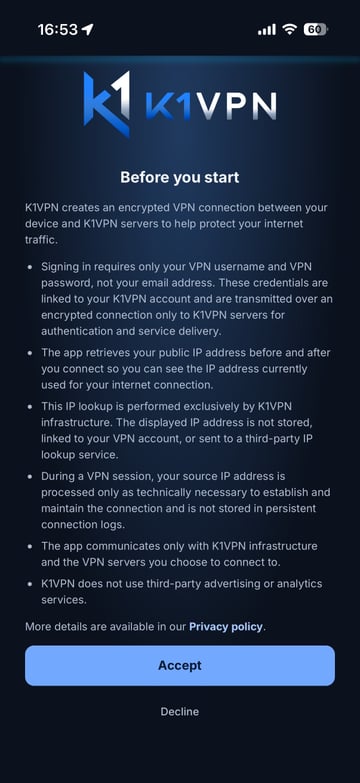
As soon as you tap "Accept" you will be taken to the "LOGIN" screen, where you need to enter your VPN Username and VPN Password.
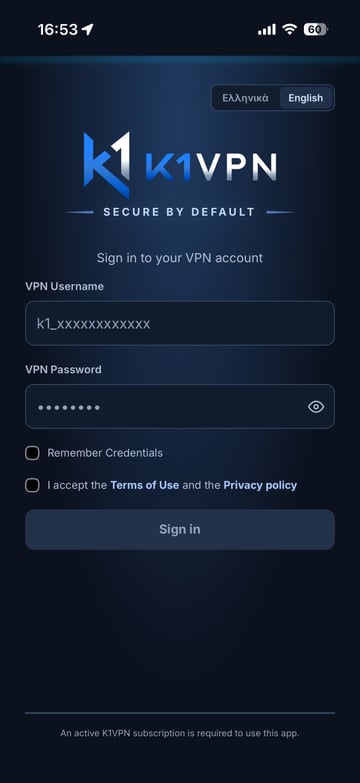
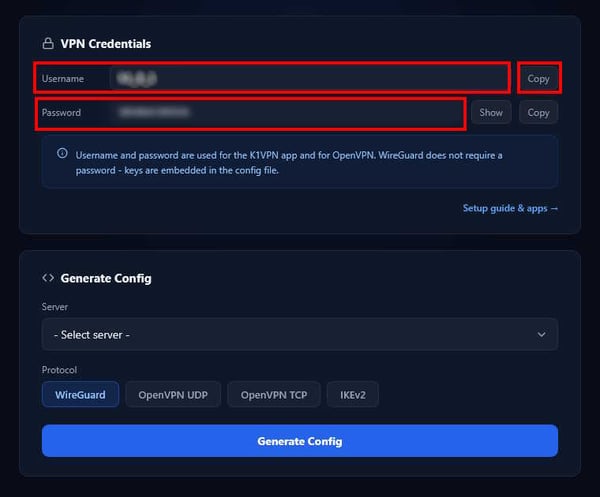
Be careful: these credentials are NOT your login details for the User Area. You will find them in your dashboard after you log in with the details (email/password) you provided when you signed up for our service, if you paid by card. If you paid with crypto, you should already have saved your anonymous login details, because they cannot be recovered.
After logging in to your dashboard, open the "VPN Connections" tab. In the first card you will find the VPN Username and VPN Password to enter in the app. Instead of typing them, you can copy them with the relevant icon and paste them into the corresponding fields of the app with CTRL+V.
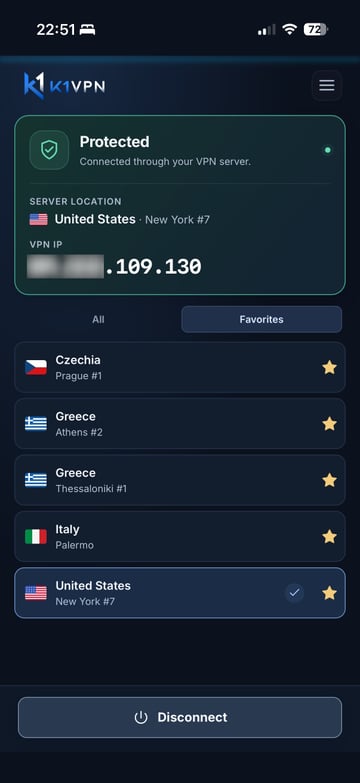
On the app's "LOGIN" screen, check "Remember Credentials" and "Accept Terms" and log in. You will immediately be taken to the screen with the list of available servers by country, as shown below.
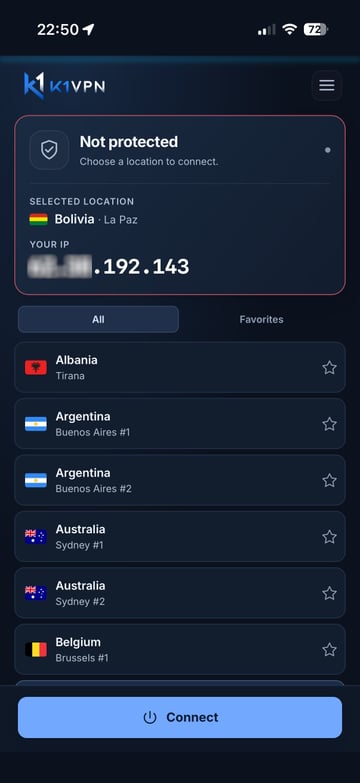
At the top of the screen you can clearly see your current IP and whether the VPN is active or not.
At the bottom of the screen you can choose the country/city/server you want to connect to and tap "CONNECT". Within a few seconds you will see your IP change and show the exit IP of the server you connected to, with the "PROTECTED" indicator. You are safe now. All your traffic, from your device to our server, passes through a strongly encrypted tunnel, and the websites you visit cannot see the real IP address your provider gave you, only the IP address of the VPN server.
The same applies to the DNS requests sent by your browser or any other app you use. They pass through the encrypted tunnel and end up at our own DNS servers, which forward them to other public DNS servers for resolution. This way, your provider cannot see which sites you visit, while the public DNS servers do not see your real IP address, only the IP of our VPN server that the request came from.
In the server list you will see a "star" ⭐️ on the right. If you tap it, the selected server is added to your favorites list so you can find it more easily. In practice, an average user never needs to use more than 3-4 different servers.
Tapping the symbol with the 3 lines ☰ at the top right of the screen opens the main menu screen with the basic options of the app.
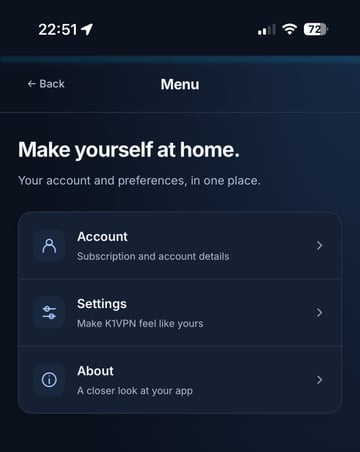
The K1VPN app keeps the same UI on all the operating systems it is available for, but there may be some minor differences in the supported features. For example, in the desktop apps for Windows and MacOS, you will find in the main menu the option to quit the app and disconnect from the VPN at the same time, if you are already connected. The images in this guide show the app running on iOS.
Your first option is "Account".
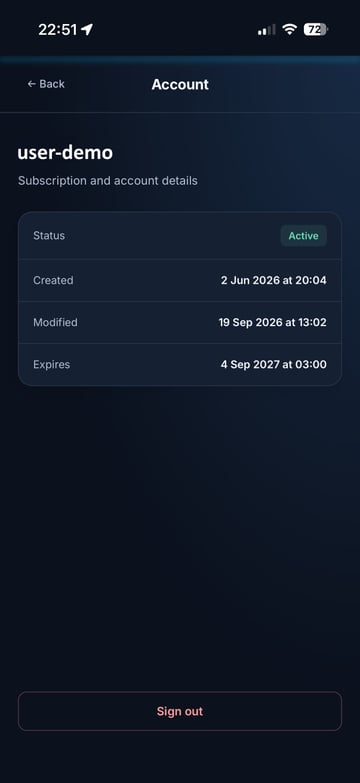
There you will see the VPN Username you are connected to the network with, and the start and expiry dates of your subscription. If your subscription has been deactivated for any reason, you will also see a relevant message on this screen. At the bottom of the screen you will find the "Logout" option. If you log out, you will be disconnected and returned to the initial screen, where you will need to enter the credentials of the same or another account with a VPN subscription. If you checked "Remember Credentials" when you logged in earlier, you will also see the option to log in automatically to the previous account. Be aware that the app stores your VPN login details and your private key encrypted and locally on your device.
The second option in the main menu is "Settings".
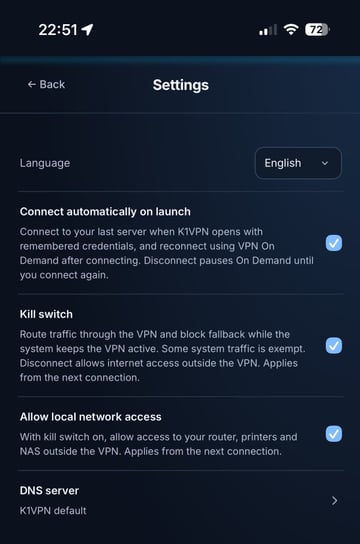
Here you can choose the app's language between Greek and English. More will be added in the future. If you are interested in an additional language, you can contact us.
Right after that you will find various options for the app's behavior. Again, depending on the operating system/device, you may see some small differences compared to those shown here. For example, on desktop Windows and MacOS systems there is an option to start the app automatically right after the operating system loads. This way you will never forget to turn on the VPN and hide your IP.
In addition, there is the option to automatically connect to the last server you were connected to when the app or your device was shut down.
Where supported separately, the option to enable the "KILL SWITCH" follows. This is a particularly important feature, and you should learn how it works according to the level of protection/privacy you want.
The role of the KILL SWITCH is to completely cut off and block any internet traffic from your device to the outside world if an active VPN connection is lost for any reason. For example, a server may malfunction or there may simply be an internet outage at the datacenter. Without the KILL SWITCH, if the VPN connection "drops", your device will try to "go out" to the internet using your real IP, which will then be revealed.
The problem in general is not that your IP may be revealed, but that you will not know it while you carry on with your activity as normal. This is the risk that enabling the KILL SWITCH prevents, so we recommend that you always keep it on.
The only "problem" with this feature is that for as long as the VPN connection is not active, your device simply has no internet and no communication with the outside world. Of course, for those who take their online privacy seriously, this is not a bug but a privacy feature.
Depending on the operating system/device, enabling the KILL SWITCH may also completely block traffic to and from your local network. Where this applies, there is a separate option that allows this traffic.
The last option is the DNS setting
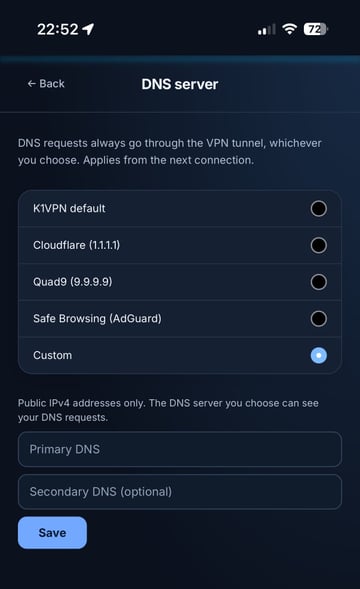
Under normal circumstances you have no reason to change this setting. The default K1VPN DNS is the safest, because for every DNS request you make, our own DNS Resolvers are placed in between. They do not keep logs of your requests, and they forward them to the best public server in terms of response time, which simply sees a request from the VPN exit IP and not your real IP address. The next DNS request will be forwarded to a different public authoritative server, and so on, so your browsing history is fragmented across many different servers.
The following needs to be understood here: if you choose another server from the list of options, or even if you manually enter a server of your choice, it does NOT mean that it will see your real IP. Quite the opposite. Our systems are designed so that even if you choose any other server, your requests will always pass through the tunnel encrypted, and the "other" server will always see the exit IP of the VPN Server, while your provider will still not be able to see your traffic and requests.
Using the default K1VPN Resolvers adds one more link to the chain of requests and responses and does not keep activity logs. On the other hand, it is worth knowing that all authoritative servers keep request logs for anywhere from a few hours to a few months/years. If you just want to experiment, give it a try, as you can set servers that protect against requests to various "suspicious" websites, pornographic or even illegal content, etc. Otherwise skip it, leave the default, and browse the internet freely.
The last screen is "About" our app.
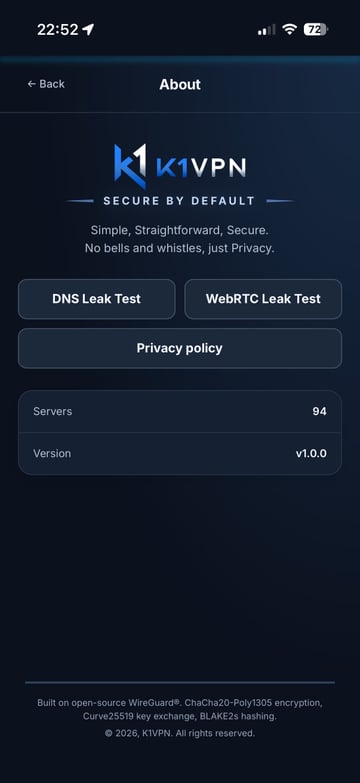
At the top of the screen you will find 2 buttons that open corresponding pages in the default browser of your operating system/device. These pages take you to the K1VPN website (not to a third party), specifically to tools you can use to check your connection. You can run them both when you are connected to one of our VPN servers and when you are disconnected, and compare the results.
The DNS leak test tool shows you which DNS servers are used to resolve the requests you make. You may see many different servers in the list, and that is not a problem when you are using the default K1VPN DNS setting. If you choose a different setting in the app and run the test, you will see the corresponding authoritative servers, e.g. Cloudflare, Quad9, or the ones you set manually. Under no circumstances should you see your provider's servers while you are connected to our VPN.
The WEBRTC Leak test tool shows you whether your provider's IP is revealed when you visit a website. When you are connected to K1VPN you should see only one line with the exit IP of the server you selected. When you are disconnected you will see your provider's IP, which is visible to every website you visit.
There is also a flag that shows whether WEBRTC is enabled or not in your browser's settings. Enabled means that the browser leaks your real IP. However, a good VPN will protect you from the leak even if you have not disabled WEBRTC, because it forces all your traffic through the encrypted tunnel, so the only IP visible to the outside world is the IP of the VPN server.
Of course, we are not asking you to trust only our own tools. There are dozens of others you can find with a quick search, so you can compare the results and verify the reliability of K1VPN.
Finally, on the same screen you will find a button to our Privacy Policy, and below it you will see the number of available servers and the app version. Note that updates are applied automatically from the stores you originally downloaded the app from, or you receive a message from the app itself prompting you to update.
Using our app is very simple, even for beginners, and it will not give you any trouble, while providing top security on your online journeys.